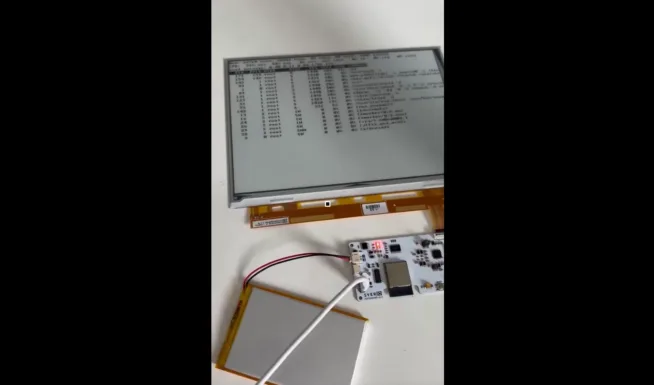
Leave a receiver running overnight, then check your phone in the morning to see what was happening on the bands. That’s what GlobalScanRX is for: an open-source project that turns RTL-SDR dongles into an automated scanner with a web archive of recordings.
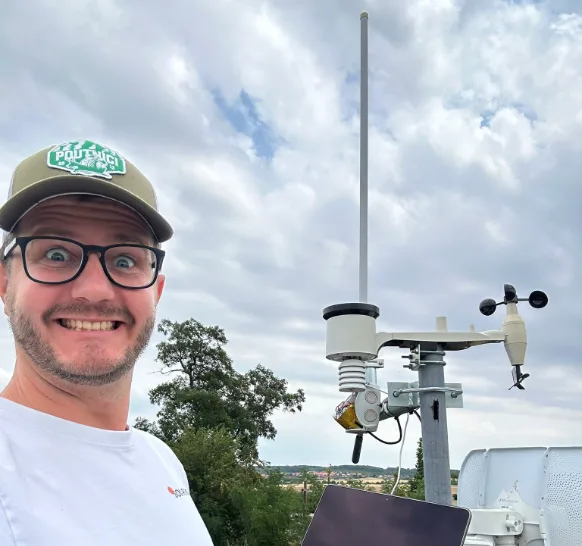
This article was written by Czech maker Dominik Čampa (TikTok @garryfreak). This is not a sponsored post; the author funds the project himself.
How it started
I’ve been interested in radio since I was a kid. My dad lent me an old Alinco radio that belonged to my grandfather, and we listened to firefighters and the OK0D amateur radio repeater on Lysá hora. I was fascinated by the fact that I could hear people miles away without needing the internet or a mobile network. I’m still into radio today.
I discovered SDR when I was thirteen, and suddenly I could see the spectrum on a monitor. I’ve been working on GlobalScanRX, or its predecessors, since around 2020. I work in IT professionally; electronics, radio and programming are my hobbies. I used to write everything by hand. These days, AI helps with development.
GlobalScanRX is still under development and testing. It’s not a finished product yet.
How GlobalScanRX works
The project has two parts. The client runs alongside the USB receivers, scans configured bands, records signals and sends the results on. The server runs the web interface, user accounts and settings, and stores the recordings. You can run both on one computer, or connect several remote stations to a single server.
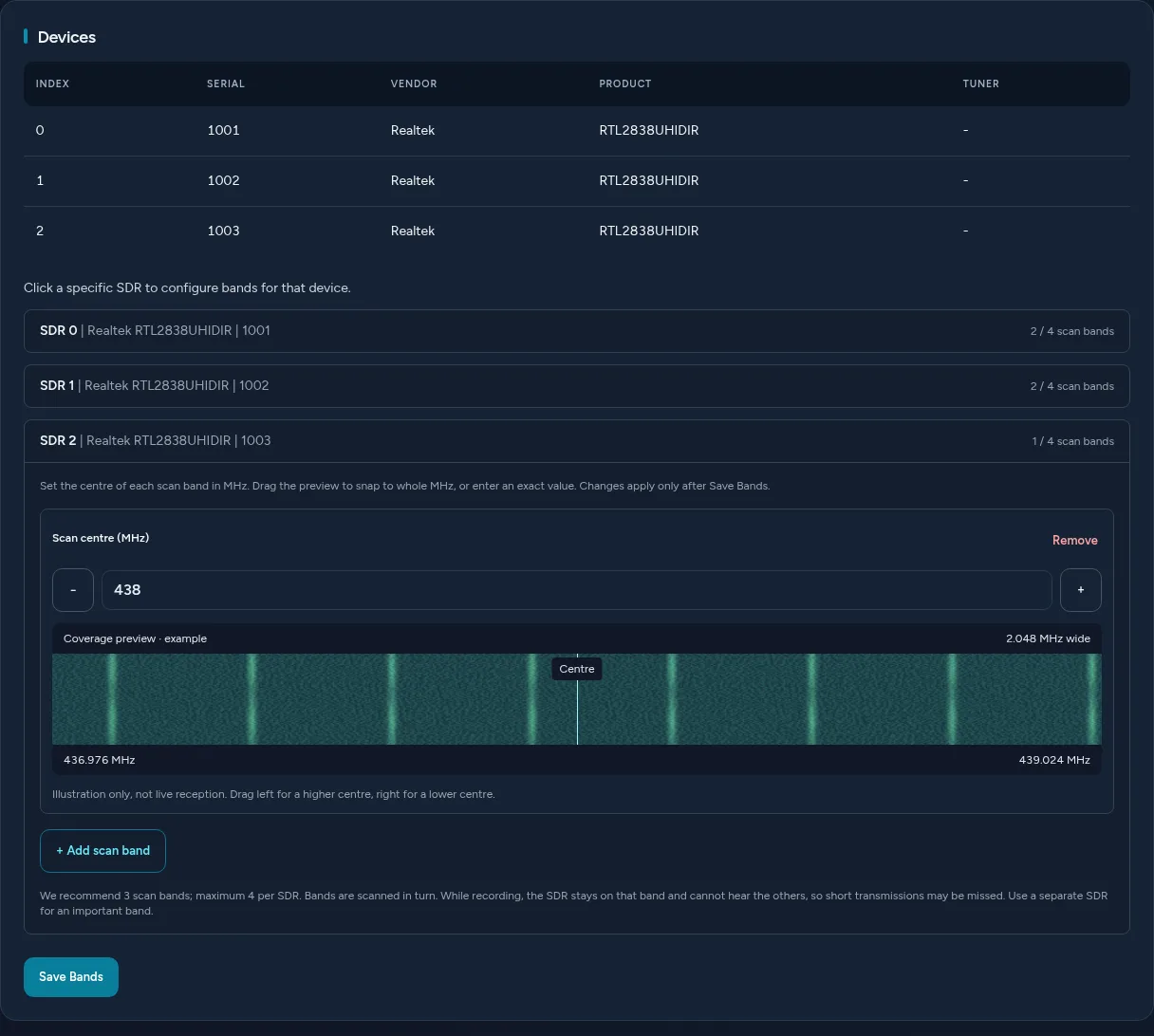
Each SDR has its own bands. A graphical editor shows the center frequency and coverage width; the default is 2.048 MHz. You can configure up to four bands per SDR, though I recommend three.
While a recording is in progress, scanning on that SDR pauses, so a short transmission on another band won’t be captured. The more bands you add, the less time the receiver spends on each frequency. Use a separate dongle for any band you don’t want to miss.
I’m testing frequencies around 145, 172, 442 and 448 MHz, and I’m also interested in the airband. Those are my settings; the software doesn’t have any fixed frequencies.
If the connection to the server drops, the client keeps scanning using its saved configuration and uploads recordings once the connection is restored. The default queue is limited to 512 MB, and recordings stay in it for 15 minutes. Increase those limits if you need to handle longer outages, or older files will be deleted.
Pick a day in the morning and start listening
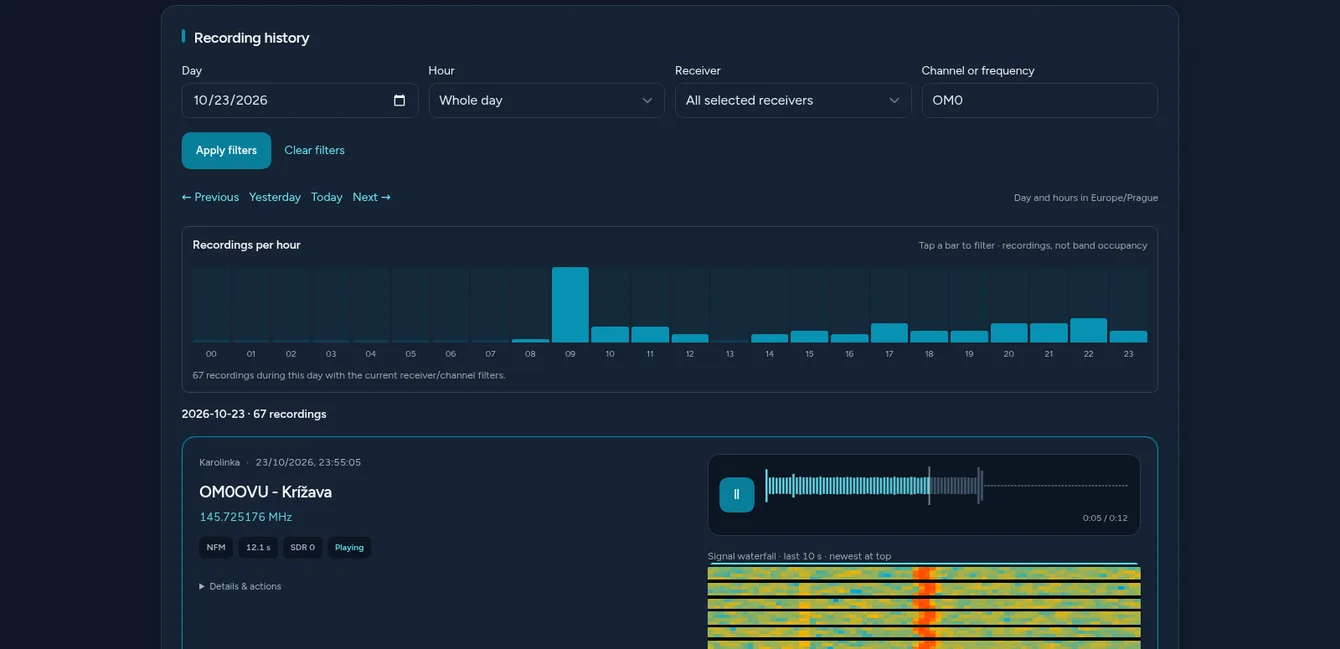
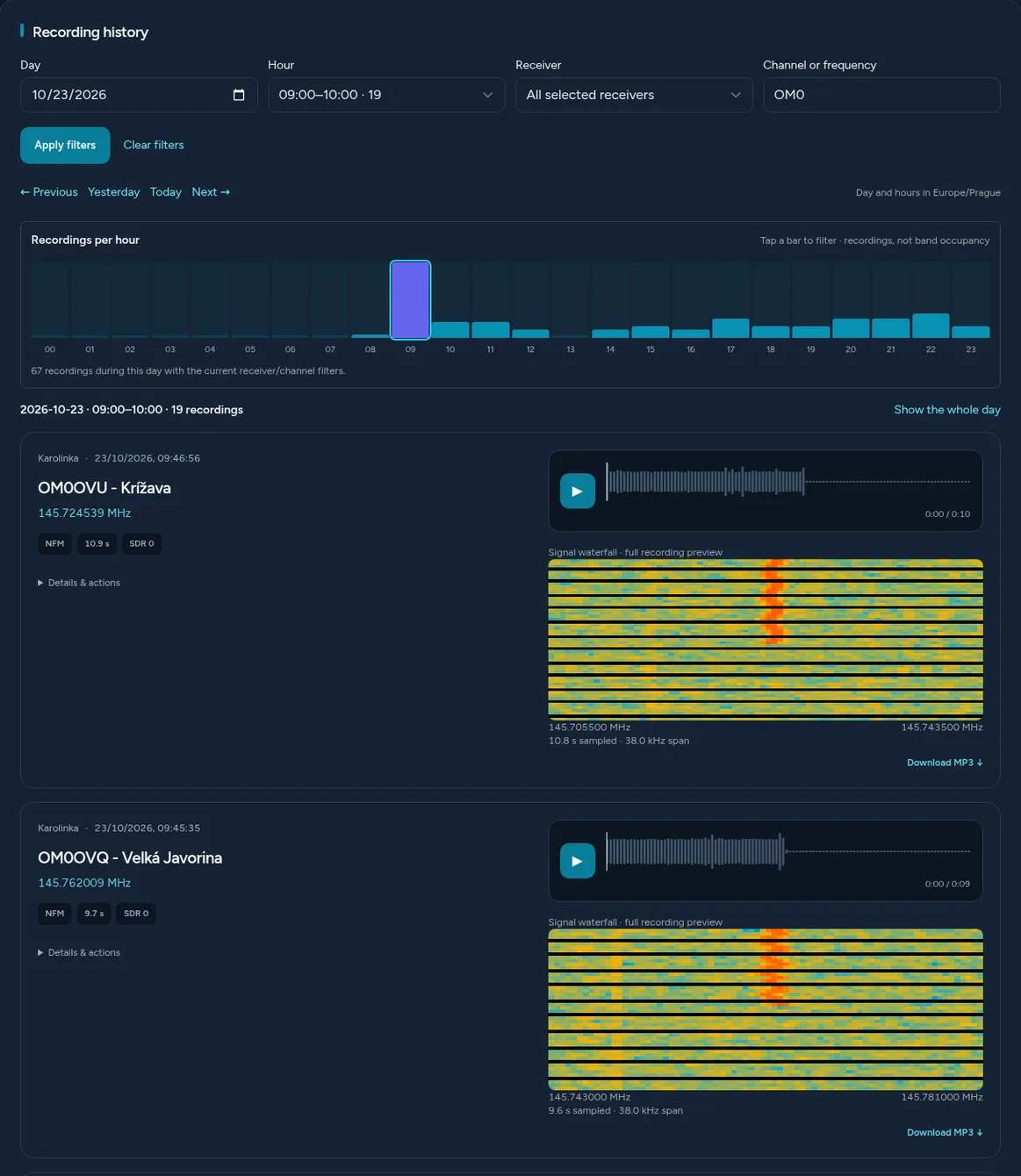
Choose yesterday on the dashboard to see an hourly chart showing when recordings were made. Click a bar to select an hour, then narrow the results by receiver, channel name or frequency. Each recording card brings together the time, receiver, frequency, channel name and player. You can download the audio as an MP3.
You can name channels based on what your receiver actually picks up, for example OM0OVU Krížava. The name is specific to your receiver, since the same frequency could mean something completely different at the other end of the country.
The owner or an administrator can block frequencies you don’t want to record. The client will then ignore detections within ±5 kHz. WARNING! Blocking a frequency also deletes all matching recordings from the server, including audio and images.
A player with a waterfall display
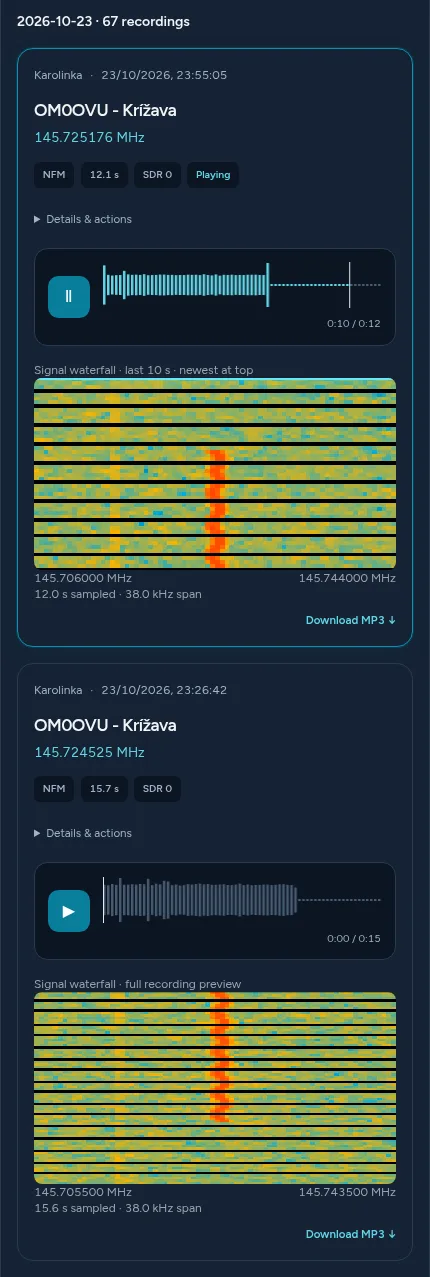
A regular slider wasn’t enough for me. The player displays the actual audio waveform, which you can click or drag across with a mouse or your finger.
I also wanted to see what the signal looked like. When waterfall capture is enabled, the client adds a narrow slice of spectrum around the recording’s frequency to the analog recording. Before playback, you can see the full slice. While listening, the waterfall scrolls along with the audio and shows the last ten seconds. Pause the audio and the display pauses too; seek through the audio and the waterfall follows.
Recordings intended for an external digital decoder don’t have a spectrum slice yet.
Live play
Turn on Live play, and each newly completed recording is added to the queue and played. Recordings from multiple receivers play one after another. Before each one, you can have your browser read out the receiver and channel names.
A recording has to finish and reach the server first. The dashboard checks for new recordings every five seconds, so playback is delayed. On a phone, your browser may limit background playback.
What to record and what to leave alone
GlobalScanRX stores recordings, makes them available for download and can share them with other makers on the server. Choose your bands carefully and block any frequencies you don’t want to record.
What it runs on
I run it on an older computer with an Intel Core i3 (I think it’s third generation). It runs Proxmox and a virtual Linux machine that I pass the USB receivers through to. I haven’t measured power consumption, load or daily recording volume yet, so I don’t know where the performance ceiling is.
I use RTL-SDR Blog V3 dongles and a VHF/UHF antenna, one of those white fiberglass whip antennas. I have three dongles connected to a single antenna through a cheap adapter from three SMA connectors to one. I haven’t measured its RF characteristics, so don’t use it as a model for your antenna distribution setup.
What you’ll need:
- a Linux computer with an amd64 processor (I haven’t tested Raspberry Pi or ARM yet)
- an RTL-SDR dongle – one is enough to start with, such as the RTL-SDR Blog V3 dongle with antennas from Czech retailer Pajeníčko
- an antenna for the band you want to listen to
- an available USB port and disk space
- Docker Engine and Compose
If you’re new to RTL-SDR, start with this RTL-SDR beginner’s guide, which also covers choosing a dongle and antenna.
Installation
Both parts are installed with Docker. The detailed instructions are in the README for the server and the client. The guides point to the latest released packages, so there’s no need to guess the version number. If someone else is already running a server, you can go straight to installing the client.
In brief: on the server, set the APP_URL address in .env, run Docker Compose, then create an administrator account in the first setup form. Complete this step before exposing the server to the internet.
On the computer with the dongles, set SERVER_URL, use the prepare-usb.sh script to disable the DVB-T driver that would otherwise claim the dongles, then build the client. The first build can take several minutes.
After installation, you need to claim the receiver on your account:
- Find
RECEIVER CLAIM PINin the client log. From the client directory, rundocker compose logs -f --tail 100 receiverto display the log. - On the website, open My Receivers → Claim, then enter the PIN, receiver name and location.
- An administrator activates the receiver, and you configure the bands for each SDR.
- Add your receiver to the dashboard under Settings → Dashboard Settings. Administrators need to do this too; activating a receiver doesn’t add it to the dashboard automatically (otherwise you’ll be looking at an empty page).
Set the receiver to Public to share it with other makers on the server. If you just want to listen, you don’t need your own SDR.
Update the server with the scripts/update.sh script, which creates a backup before making changes. To rebuild the client, use the source package and follow the update instructions. Both parts also have optional automatic updates, disabled by default.
WARNING! Don’t use docker compose down -v if you want to keep your data. For the client, that would also delete the receiver’s identity and any queued recordings. Use docker compose stop to stop it.
What’s still causing trouble
USB causes most of the problems. I recommend no more than three active SDRs per controller; with more than that, my controller froze. Different USB ports often connect to the same controller, though. Sometimes the only fix is to physically unplug the dongle and plug it back in.
In Proxmox, all three receivers have occasionally disappeared at once. I suspect a higher data rate, but I haven’t confirmed that. It might work better without virtualization, but I haven’t compared the two setups yet. If the SDR doesn’t show up in lsusb inside the client system either, the problem is with USB or the system, not the web interface.
I’m still working on digital modes. For digital voice, I use an external DSD decoder and have tested DMR. But the client sometimes mistakes a digital transmission for an analog one and saves it as ordinary audio instead of passing it to the decoder. It won’t make encrypted traffic accessible, of course.
A custom demodulator
I’m happiest with the custom demodulator. I didn’t want the client to simply run rtl_fm and pass along its output. I wrote the whole processing chain, from I/Q samples to the finished recording, in C++17. You can find it in src/demodulator.cpp.
The client first digitally shifts the selected channel down to baseband and filters it. Next comes AM or FM demodulation (NFM or WFM), decimation and resampling the audio to 48 kHz. The FM demodulator calculates the phase difference between consecutive complex samples. The analog processing path then applies a DC block, optional AGC and block-boundary handling to avoid disrupting phase or timing between data blocks.
Of course, I’m not writing everything from scratch. I communicate with the dongle through librtlsdr, and FFTW handles the FFT. The waterfall is generated from the FFT the scanner is already calculating, while the server uses FFmpeg to prepare the audio waveform for the player. The server is written in Laravel and uses SQLite by default.
What’s next
First, I want scanning to continue within the monitored band while a recording is in progress. After that, I’d like to write my own DMR demodulator and decoders for CTCSS (subaudible tones used for squelch control) and DTMF (touch-tone dialing).
In the longer term, I’m interested in TDOA, which determines a transmitter’s location from differences in the signal’s arrival time at several stations. The time differences form hyperbolas, and their intersection can show where the signal came from. I’d like to see that displayed on a map in the web interface one day.
I want to synchronize timing using a shared DAB reference signal. Clients would switch between the reference and monitored frequencies using librtlsdr-2freq, then send I/Q samples to the server for correlation. DC9ST tested the same method with RTL-SDR in the tdoa-evaluation-rtlsdr project, so I’m planning to run my first tests in MATLAB too. I’ll check frequency calibration against GSM base stations and use USB GPS to determine station locations.
I still need to check whether the shared reference will work and what effect switching the tuner will have on timing. An accuracy of 100 to 500 meters is just my goal for now; I don’t have any measured results.
I don’t have an amateur radio license yet, but I’d like to get one someday. Until then, I’m listening and seeing what I can build around radio.
The server is licensed under GPLv3.